
Google reviews play a major role in enhancing your online visibility, earning customer trust, and improving your position in local search results. Having a direct link to your Google Reviews page makes it easier for customers to leave feedback, increasing the chances of generating more high-quality reviews.
In this guide, we’ll show you how to create a direct Google Review link and the best ways to share it across different platforms to maximize responses.
How to Create a Google Reviews Link
You can generate your Google Review link in two primary ways, depending on your access level to the Google Business Profile.
1. Find the Link via Google Search
The quickest method is available to verified business owners or managers. Just search for your business on Google and follow the on-screen options to access your review link.
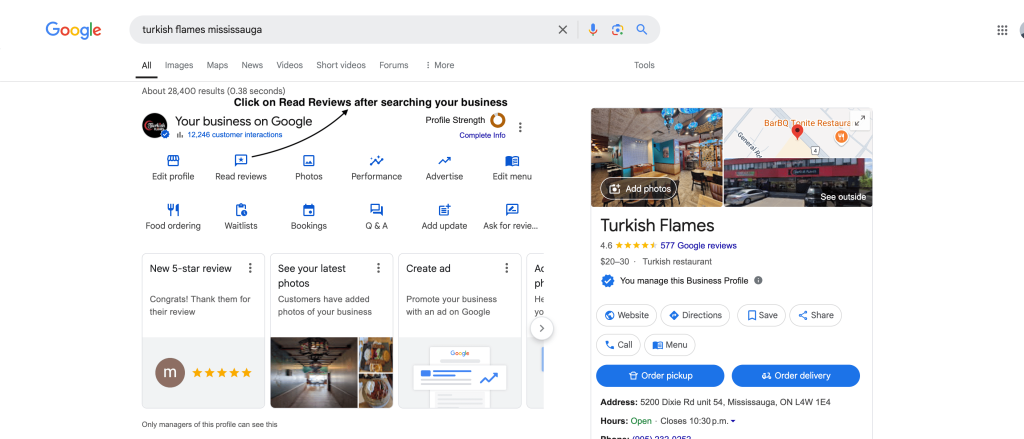
- Search for your business name on Google Search
- Click on “Read Reviews.”
- Then click on “Get More Reviews.”
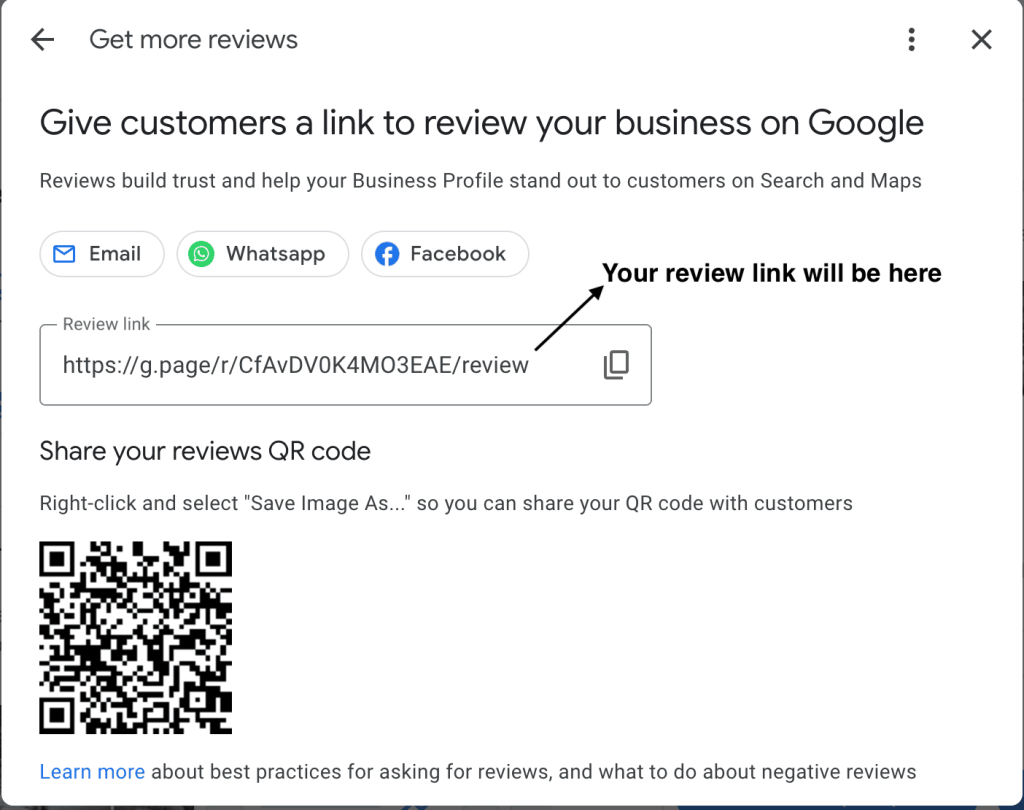
Google provides a QR code and a shortened version of your review link, but if you’d like to make it even more user-friendly, you can use a URL shortener like Bit.ly or tinyURL.
This method is the most convenient and ensures you have a ready-to-share link for customers.
2. Use the Google Place ID Finder Tool
This option works even if you’re not listed as the business owner or the manager, as long as the profile is verified and publicly accessible. For businesses that haven’t fully claimed their Google Business Profile, the Place ID Finder tool provides another way to generate a review link:
- Go to the Google Place ID Finder.
- Enter your business name in the search bar.
- Select your business from the dropdown list.
- Copy the Place ID that appears.
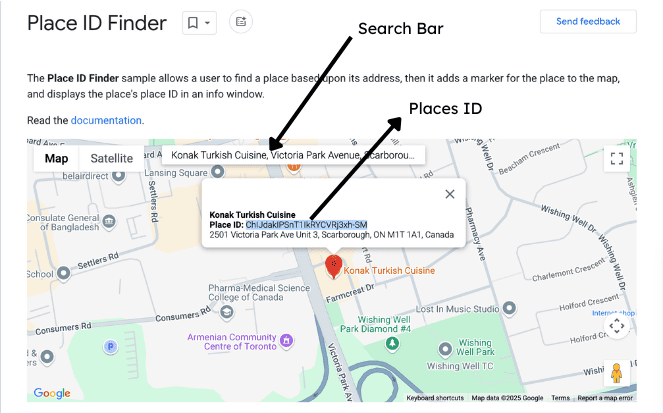
- After finding your Place ID, add it to the end of this URL format instead of YOUR_PLACE_ID:
https://search.google.com/local/writereview?placeid=YOUR_PLACE_ID - Example: If your Place ID is ChIJdakIPSnT1IkRYCVRj3xh-SM, your Google Reviews link will be: https://search.google.com/local/writereview?placeid=ChIJdakIPSnT1IkRYCVRj3xh-SM
- Share this link with customers so they can easily leave a review.
Where and How to Share Your Google Reviews Link
Once you have your Google Reviews link, the next step is to strategically share it across different channels to maximize responses.
Use it on your Tapelio Product for Effortless Reviews

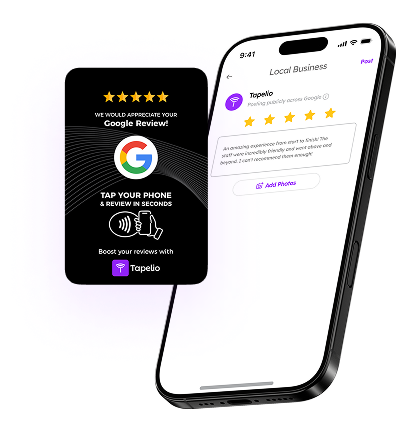
Tapelio makes collecting customer reviews simple, fast, and seamless—eliminating barriers and making feedback effortless.
How to use Tapelio
- Introduce Tapelio to Customers
Hand over the Tapelio Google Review Card during or after their visit to encourage instant engagement.
- Tap & Open the Review Page
A single tap on a smartphone instantly loads the Google review page—no apps, no scanning, no extra steps.
- Quick & Easy Feedback
Customers can leave a review within seconds, strengthening your online reputation and boosting search visibility.
Industry-Specific Ideas for Using Tapelio
- Restaurants and Cafés: Place Tapelio cards on tables, at the checkout counter, or on menus, allowing customers to leave a review right after their meal.
- Retail Stores and Boutiques: Keep a Tapelio card at the register for instant reviews after a purchase, or place them near fitting rooms for shoppers to share their experience quickly.
Make collecting reviews effortless—get your Tapelio Google review card today!
Email Signature
Enhance your email footer with a friendly prompt like:
“Loved our service? Leave us a review!”

Include your Google Review link to make it easy for clients to share their feedback.
Social Media
Share your review link on platforms like Facebook, Twitter, LinkedIn, and Instagram by adding it to your bio and including it in your posts. Highlight your best recent reviews as social proof and encourage followers to share their feedback. Use engaging captions like “We’d love to hear from you! Tap the link to leave a review.” Pin a post with your review link so it stays visible, and don’t forget to reply to existing reviews to show appreciation and boost engagement.
Website Integration
Set up a dedicated “Reviews” or “Testimonials” page on your website and include your Google Review link as a call-to-action.
Add a prominent call-to-action button like “Leave a Review” in your website footer or on your homepage.
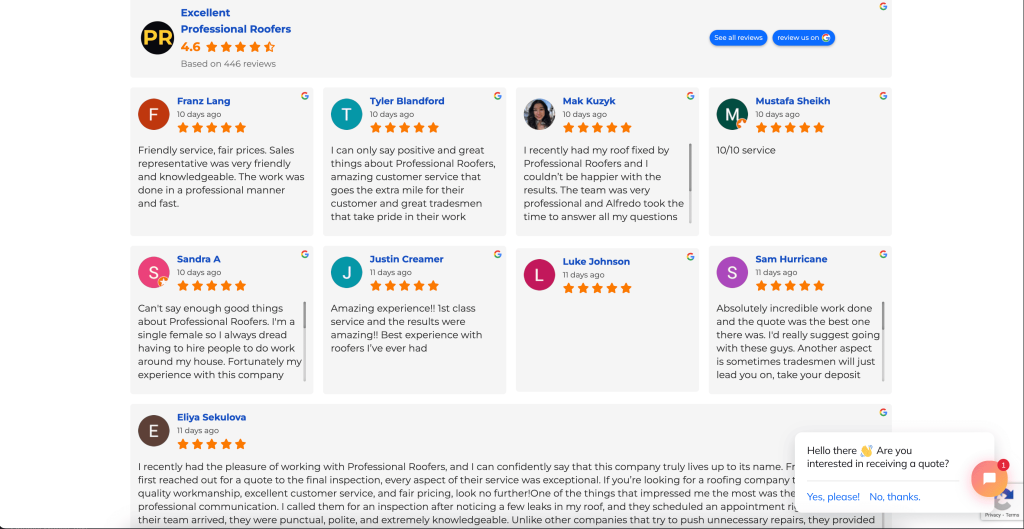
SMS, Email and WhatsApp
Send a personalized message to customers after a service or purchase:
“Thank you for choosing us! We’d love your feedback. Please leave us a Google Review here: [Insert Link]”
Instead of manually sending messages every time, an automation agency can help you set up an automated system that sends review requests via SMS or email after each transaction. This ensures consistency, saves time, and increases the chances of getting more reviews effortlessly.
Printed Materials
Include a QR code on receipts, invoices, or business cards so customers can scan and leave a review instantly.
Google Review QR Code
Generate a QR code using free tools like QR Code Generator or Canva. Place it in high-traffic areas to encourage instant feedback.
Conclusion
Building a strong Google reviews strategy starts with making it easy for customers to leave feedback. A direct Google review link removes friction and increases the chances of receiving more high-quality reviews. Whether through Tapelio, social media, email, or automation, streamlining the review process helps businesses improve local SEO, attract new customers, and strengthen credibility. Make Google reviews effortless and watch your business grow.